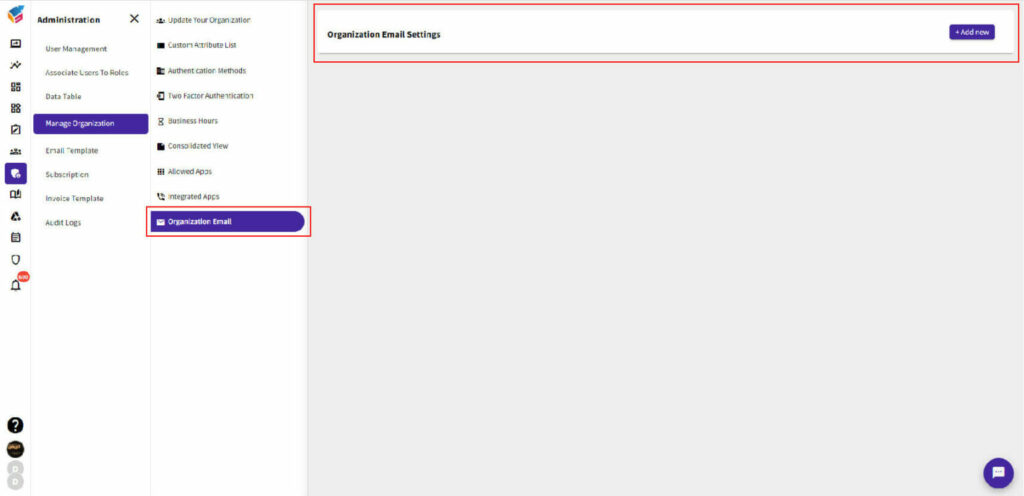
Under the Administration section, choose “Manage Organization and click on “Organization Email.”
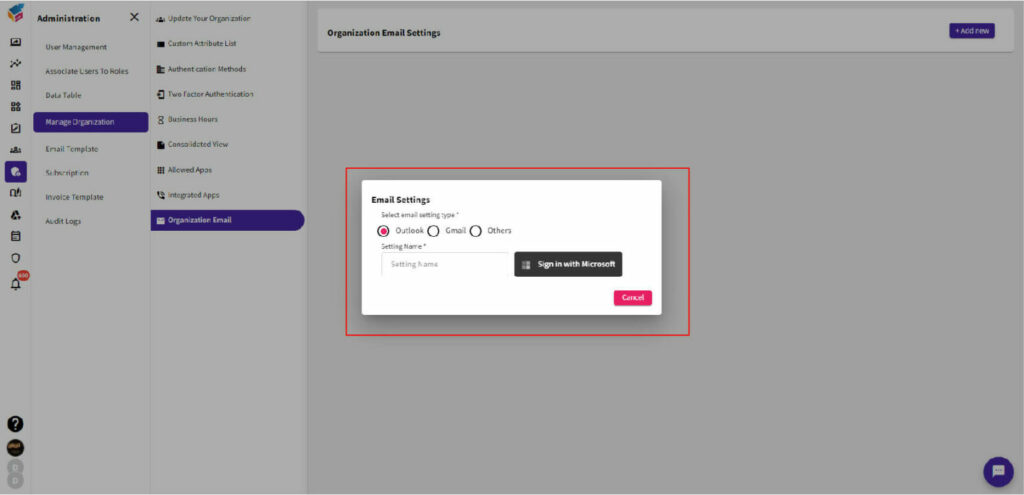
To add an email account, click “Add New” and provide the email setting name.
Select the email setting type.
Configure the incoming and outgoing server settings.
Save the settings and verify the email account.
With this feature, you can send mail notifications using a specific organization email instead of the default bot mail. This customization allows you to maintain a consistent and professional branding by using your organization’s email address for sending notifications.